Add a real countdown timer to your email, free
A countdown that shows the true time left each time the email is opened. How to make one in a minute, where it works, and where it quietly breaks.
A deadline in an email is usually a sentence: "offer ends Friday". The reader has to work out what that means on the day they open it, which is often not the day you sent it.
A countdown timer does that work for them. We built one and put it on the site for anyone to use: the free email countdown timer. No signup, no watermark, no credit card.
What it actually is
It is one image, with the timer settings packed into its URL. When someone opens your email, their mail app requests that image, and the image is drawn at that moment: an animated GIF showing the real time left, counting down second by second for the next minute.
Open the same email an hour later and the mail app asks for the image again, so the numbers are an hour lower. Nothing in the email changes. The image does.
That is the whole trick, and it is why a timer in email cannot be a bit of JavaScript. Mail apps do not run scripts. They do load images.
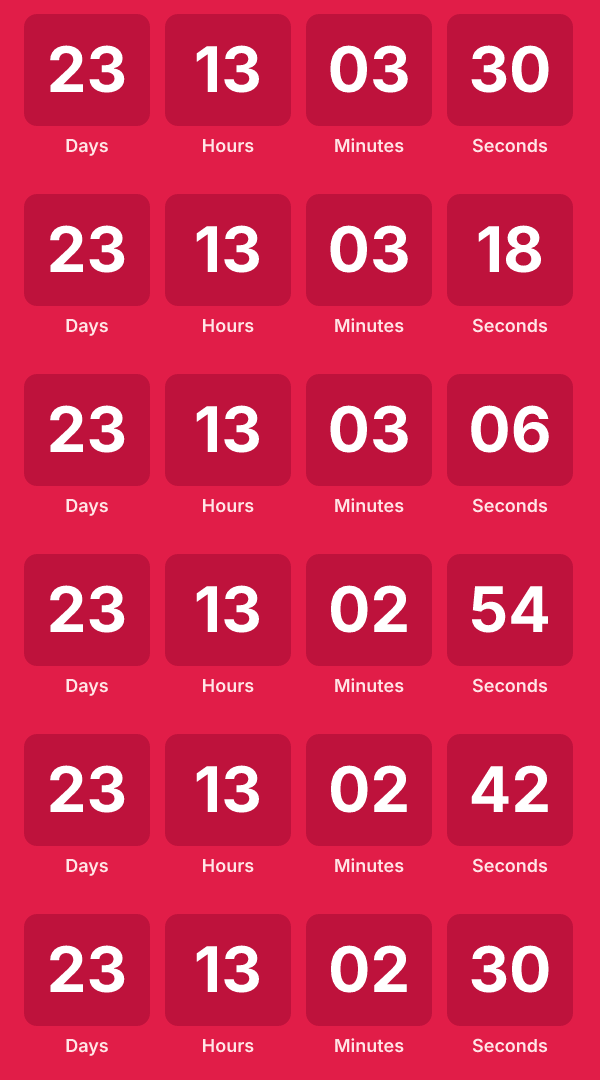
That is a real one, made with the tool and dropped straight in here. It counts down the next minute from the moment it loaded, which is exactly what a recipient sees when they open your email.
Make one
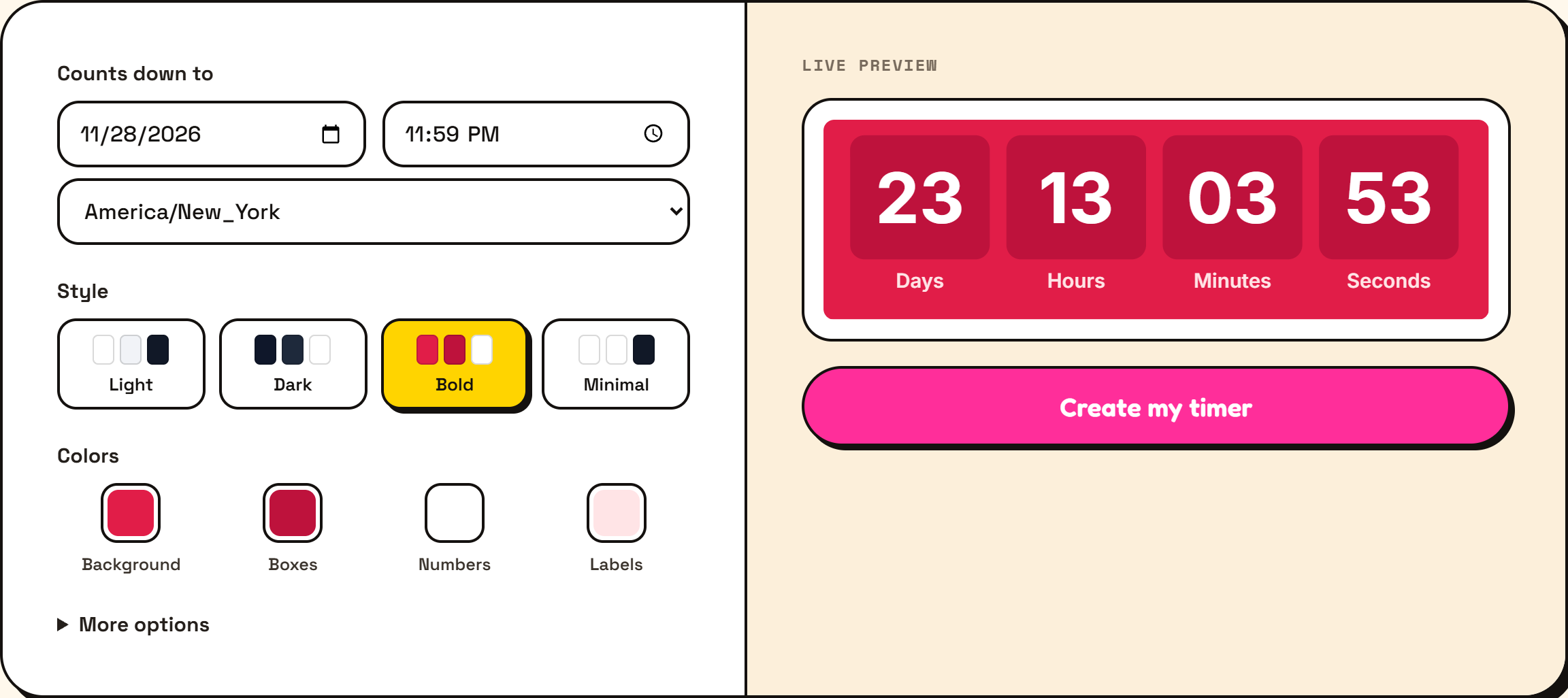
Go to the tool and you get a form on the left and a live preview on the right.
- Pick the deadline. Date, time, and time zone. The time zone matters: everyone counts down to the same moment, so a 9pm New York deadline is 2am in London and the timer says so.
- Make it yours. Four colors (background, boxes, numbers, labels), a handful of fonts, and labels in English, Spanish, French, German, Portuguese or Italian. You can also write your own labels, so "days hours minutes seconds" can become whatever you want.
- Decide what happens at zero. Type an ended message, like "This offer has closed", or leave it empty and it keeps showing 00:00:00:00.
Then press Create my timer. You get two things to copy: the image URL, and a ready-made block of HTML. They both point at the same image, so use whichever your email tool prefers.
Putting it in your email tool
Klaviyo. Add an Image block, choose Select image, then Dynamic image, and paste the image URL into the "Dynamic variable or dynamic URL" field. Klaviyo will not fetch and cache it, which is what you want.
Mailchimp. Add a Code block and paste the HTML.
HubSpot. Add a Rich text module, open Advanced, then Source code, and paste the HTML.
Anything else. If you can insert an image by URL, or edit the HTML, you can use this. That covers nearly every tool, including plain Gmail with a signature.
One habit worth keeping: send yourself a test and open it on your phone before you send it to a list. Takes thirty seconds and catches the wrong time zone, which is the mistake everybody makes once.
Where it works, and where it does not
The animation plays in Gmail, Apple Mail, Yahoo, most mobile apps, and the new Outlook for Windows.
Classic Outlook, the old version built on the Word rendering engine, shows only the first frame of any GIF. People reading there still see the correct time left when they open the email, with the right number of days, hours, minutes and seconds. They just do not see the seconds tick. So put your most important number first and do not write copy that depends on movement.
Dark mode is worth a thought too. The timer has its own background color, so it will not be inverted, but a white timer panel in a dark email can look like a bright rectangle sitting on the message. Pick a background that works against both.
The honest limits of the free version
The settings live in the image URL, so a timer is fixed once you have sent it. If the sale moves, you make a new timer for the next send. Already-sent emails keep counting to the old deadline.
Accuracy is about ten seconds, which nobody has ever noticed in an email.
And it is one deadline for everyone on the list, so it suits a sale, a webinar or a launch rather than a per-customer expiry.
The same idea, for everything else in the email
The timer works because the image is drawn when the email is opened instead of when it is sent. Once you have that, the deadline is only one of the things that can change.
That is the rest of Piksio. The same render happens per recipient, so the image can carry their first name, the code you generated for them, their order or their city, drawn into your own layout with your fonts and colors rather than pasted on top as plain text. It starts free with 500 images a month, no credit card. You can see how it works or look at the pricing.
If all you need today is a countdown for Friday's sale, the free tool is right there and you are done in a minute.
And if someone you work with is about to spend an afternoon building one, send them the link. It costs them nothing and saves them the afternoon.
One question before you go
A timer works because the picture is drawn at the moment someone looks at it. That is a general trick, and the deadline is the obvious use for it. I am less sure about the rest.
So, a question: which image in your emails is already wrong by the time it gets opened? A stock level, a delivery window, the seats left on a webinar, a renewal price, the name of the rep who actually owns the account now. Transactional receipts, campaigns, cold outreach, all of it counts, and the answer is probably different for each.
Tell me in the comments. The requests that keep coming back are the ones that get built, and a free tool is usually the fastest way for me to test whether an idea is useful before it becomes a feature.
Comments