
Brand fonts
Piksio reads two fonts from your website: a Display font for headlines and a Body font for text. You can change either one in the brand profile.
When your font can’t be used in images
Section titled “When your font can’t be used in images”Piksio can only draw text in an image with a font it has the files for. It has the full Google Fonts library. Many brands use a paid or custom font that isn’t in it.
When that happens, the brand profile tells you:
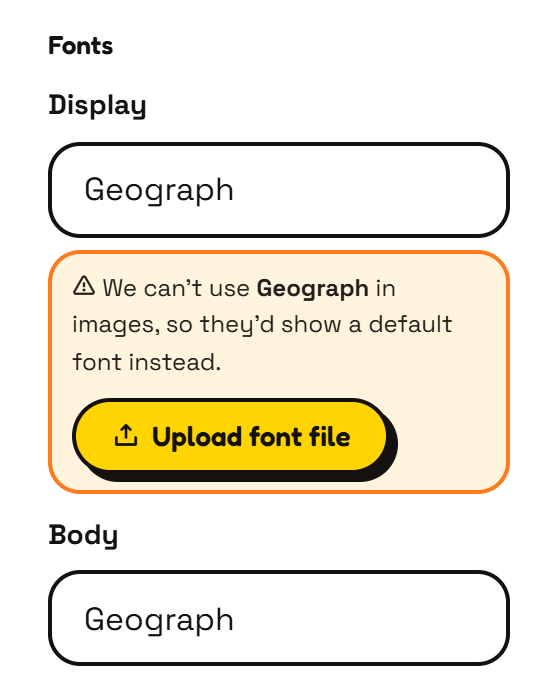
- “We can’t use your font in images” means images would show a default font. Click Use font (closest free match) to swap in the nearest Google font, or upload your own (below).
- “Standing in for your font” means Piksio already picked a close match for you. Upload the real font if you want an exact match.
Upload your own font
Section titled “Upload your own font”- In the brand profile, click Upload font file (or Upload your font).
- Choose the font files. Add one file per weight, like Regular and Bold.
- Check the font name, and confirm that your font licence allows you to use it this way.
- Click Upload.
You can also upload a font from the editor’s font picker. Uploaded fonts are saved to the brand and appear at the top of the font picker, marked Uploaded.