Start from a template
Templates are finished designs with the personalization already wired up: the merge tags, the picture fields, the fallbacks. Copying a template is free. Recipient images then reuse your saved copy with each person’s details; they follow the usual personalized-image allowance and pricing. AI artwork is only generated if you choose to create or change it with AI, not when a recipient’s fields are filled in. See template creation and recipient personalization.
Pick one
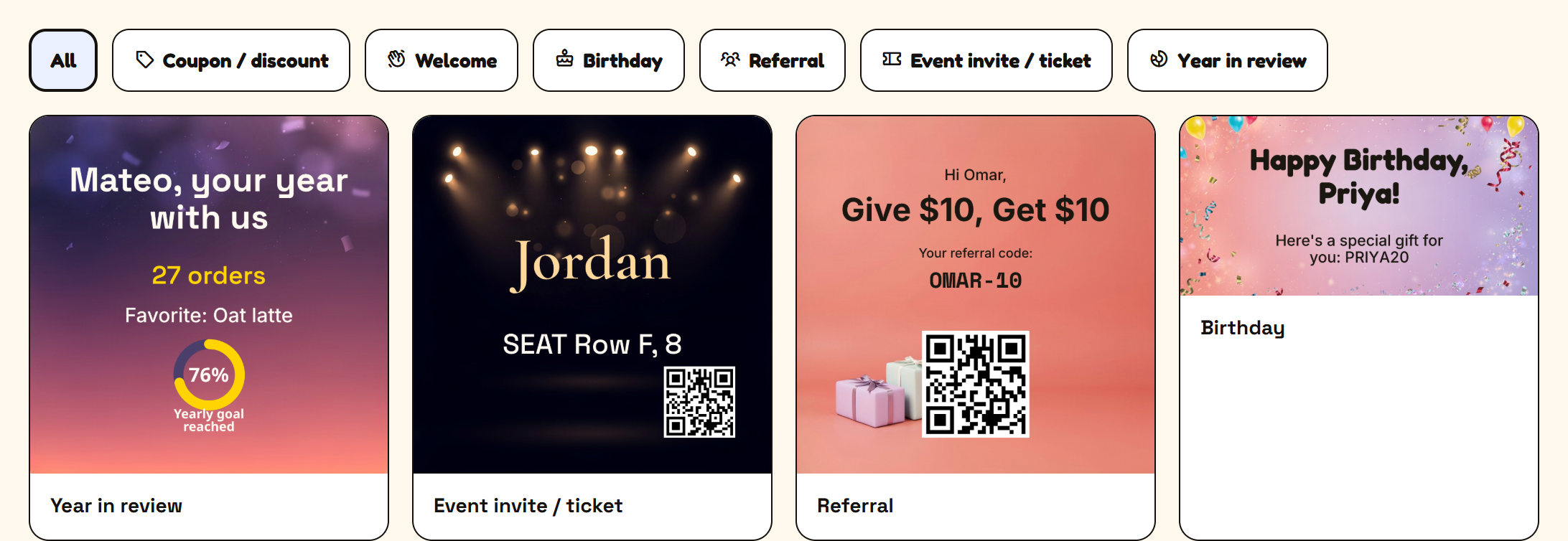
Section titled “Pick one”Click Create a personalized image, then Start from a template. Filter the gallery by what you’re making (coupon, welcome, birthday, abandoned cart, referral, event ticket, certificate and so on), and click a design to open it.
It becomes your own copy
Section titled “It becomes your own copy”Opening a template copies it. You edit the copy, and saving always creates a new image of your own — the shared original is never changed, whatever you do to it. Open as many as you like: Other templates on the result screen takes you back to the gallery.
Then make it yours
Section titled “Then make it yours”From here it’s the same result screen as Create with AI:
- Rewrite any line under Text, keeping the
{{tags}}where each person’s details go. - Set what a recipient with no data sees under When a detail is missing. See Fallbacks and blanks.
- Switch the preview between Sample person and No data (fallbacks).
- Open in editor if you want to move things, change colours or add layers. Nothing is regenerated.
- Name it and click Save & get link, then copy the link for your platform in Use in email.
A template’s own picture comes with it. To replace it, open the design in the editor and change the background, or start again with Create with AI and describe the picture you want.