Editor tour
Open the editor from Personalized media: click Create a personalized image and choose Blank canvas, or click a saved image’s preview to edit it. A design that came from a template or from Create with AI opens here too, with Open in editor on its result screen — nothing is regenerated.
The canvas and its panels want a wide screen. On a phone, make the image with a template or with AI instead: On your phone.
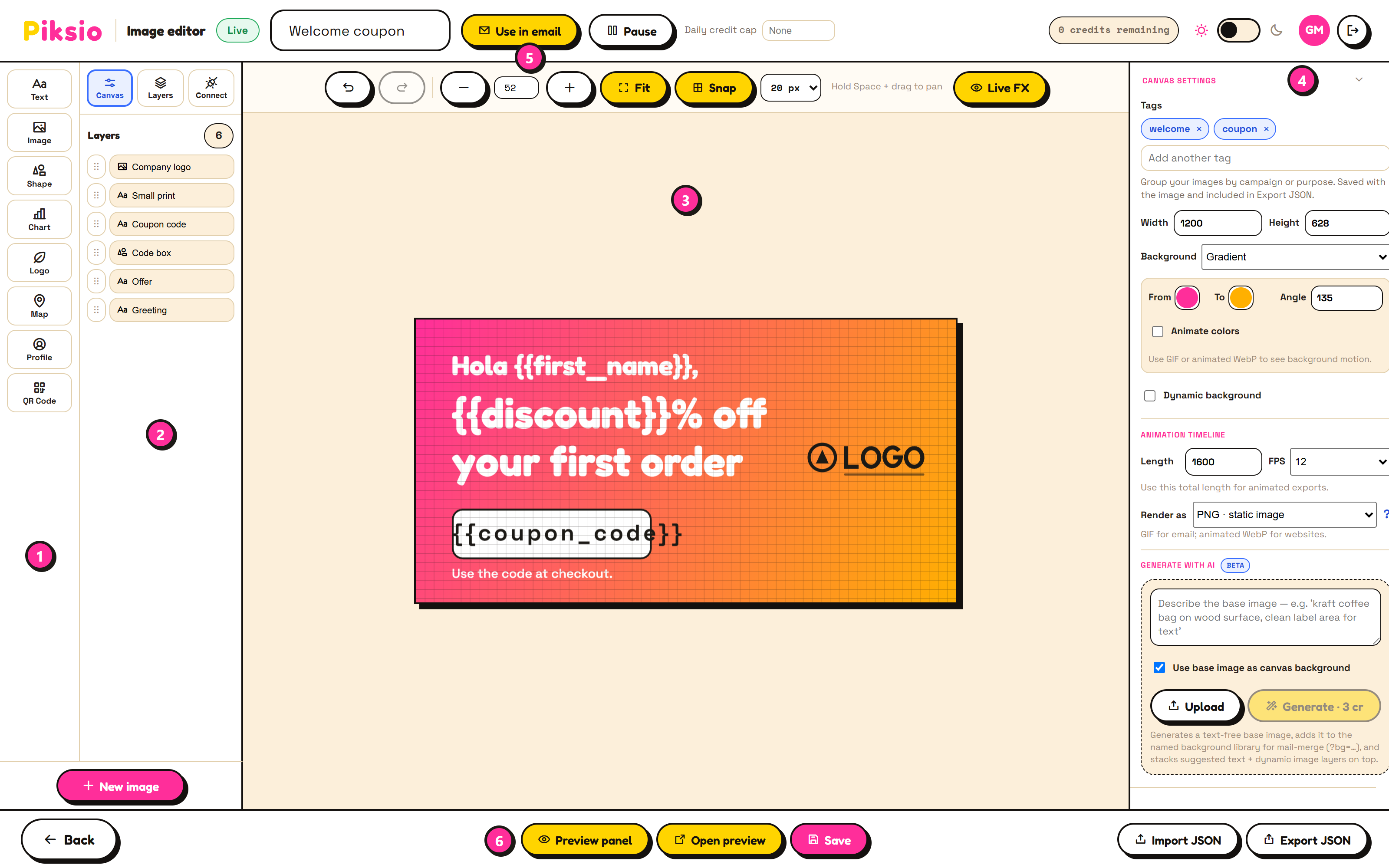
- Add elements. Text, Image, Shape, Chart, Logo, Map, Profile (a person’s photo) and QR Code. Click one to add it to the canvas.
- Layers. Everything on the canvas, top layer first. Click a layer to select it, drag to reorder. The Canvas tab holds the whole image’s settings, and Connect opens Use in email.
- Canvas. Drag, resize and rotate layers. The toolbar above it zooms, fits the image to the window, and snaps to a grid. Live FX shows server-side effects (like wrapping text around a bottle) on the canvas as you work.
- Settings. With nothing selected: the image’s size, background (colour, gradient or image), animation length and the Render as format. With a layer selected: that layer’s content, text style, effects and position.
- Top bar. The image’s name, whether it’s Live or Paused, Use in email, Pause / Resume (see Pause), and an optional Daily credit cap for this image.
- Preview and save. Preview panel renders the image with sample values. Open preview opens a full-size render in a new tab. Save stores the design and gives it its link.
Import JSON and Export JSON (bottom right) save a design as a file and load it again, for example to share a design with another Piksio user.
AI creation and recipient rendering
Section titled “AI creation and recipient rendering”The canvas is an option for creating and refining your reusable template. Create with AI can build the initial design for you. After saving, recipient images use that design with the supplied field values; they do not generate new AI artwork. Generating a new background or using Edit this picture is a separate action with its own credit cost. See AI creation and pricing.
Canvas settings
Section titled “Canvas settings”Select Canvas (or click an empty part of the canvas) to set:
- Tags: labels like
black fridayto group your images. See Tags. - Size: width and height in pixels. For email, 1200 × 628 or 1080 × 1080 are common. The image is shown at its email width by your
<img>tag. - Background: a colour, a gradient, or an image. Dynamic background lets each recipient’s link choose a background.
- Animation timeline and Render as: how long animations run, and the output format. See Formats.
- Generate with AI: Create with AI opens the same questions as the start screen, sized to this canvas. Piksio designs the picture, the text and the personalized layers, and Use in canvas brings the result back here. Your current design stays as it is until you choose the result. It uses credits, shown before you generate. See Create with AI.
Next: Personalize layers.