
Preview and save
This page is the editor’s preview and saving. A template or an AI design has the same two things on its result screen: a live render with Sample person / No data (fallbacks), and Save & get link. See Create with AI.
Preview panel
Section titled “Preview panel”Click Preview panel to render the image the way a recipient gets it. Type a value for each field, or paste a whole set of link parameters into URL parameters, like first_name=Maya&discount=25&coupon_code=MAYA25.
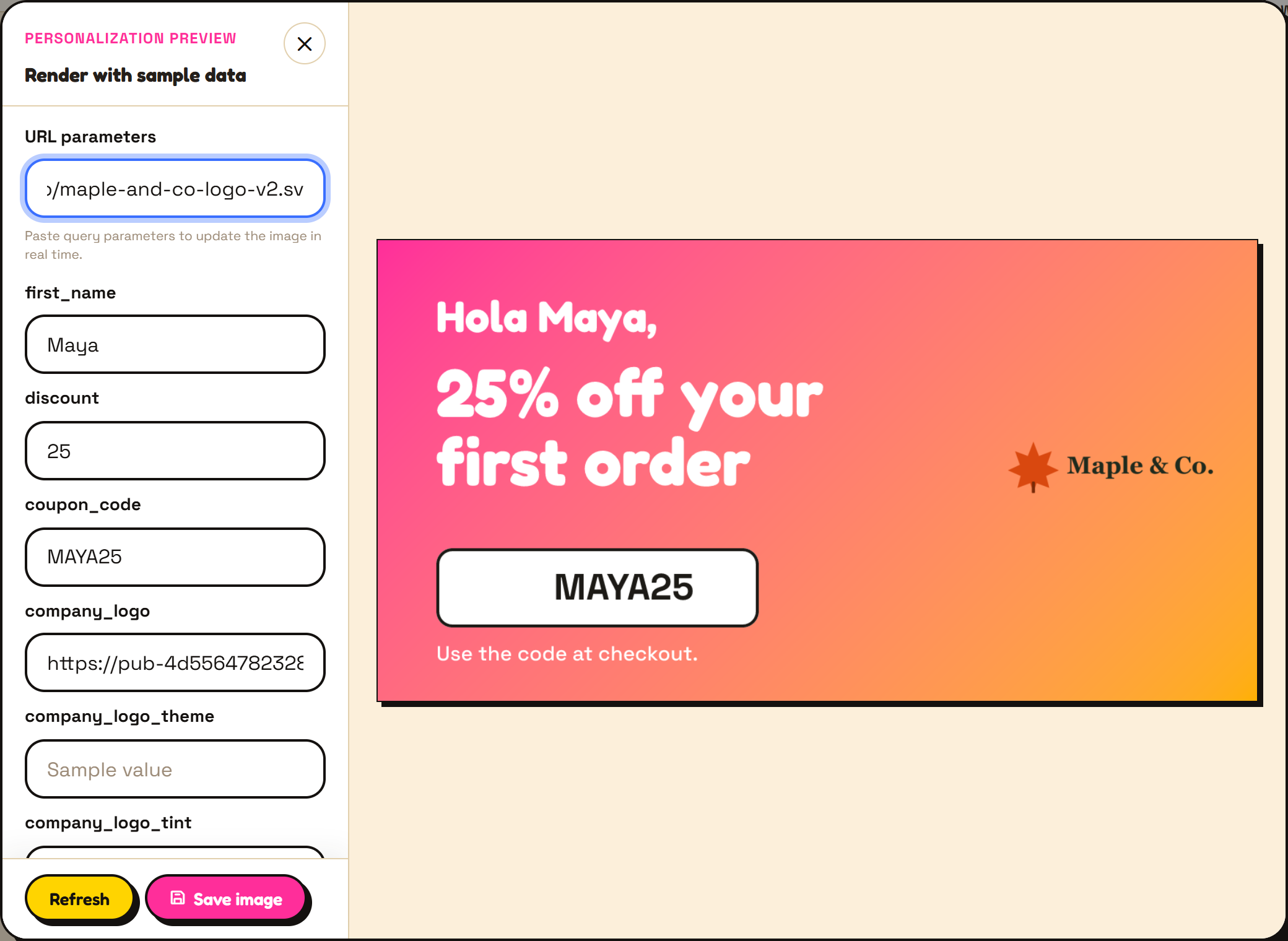
Empty fields show your fallbacks, and missing text is left out, exactly as in a real email. Open preview shows the same render full-size in a new tab.
Give the image a name in the top bar and click Save. The first save gives the image its link. Saving again updates the same link: emails you’ve already sent show the new version when they’re next opened.
Personalized media
Section titled “Personalized media”Personalized media lists your saved images with their views over the chosen period.
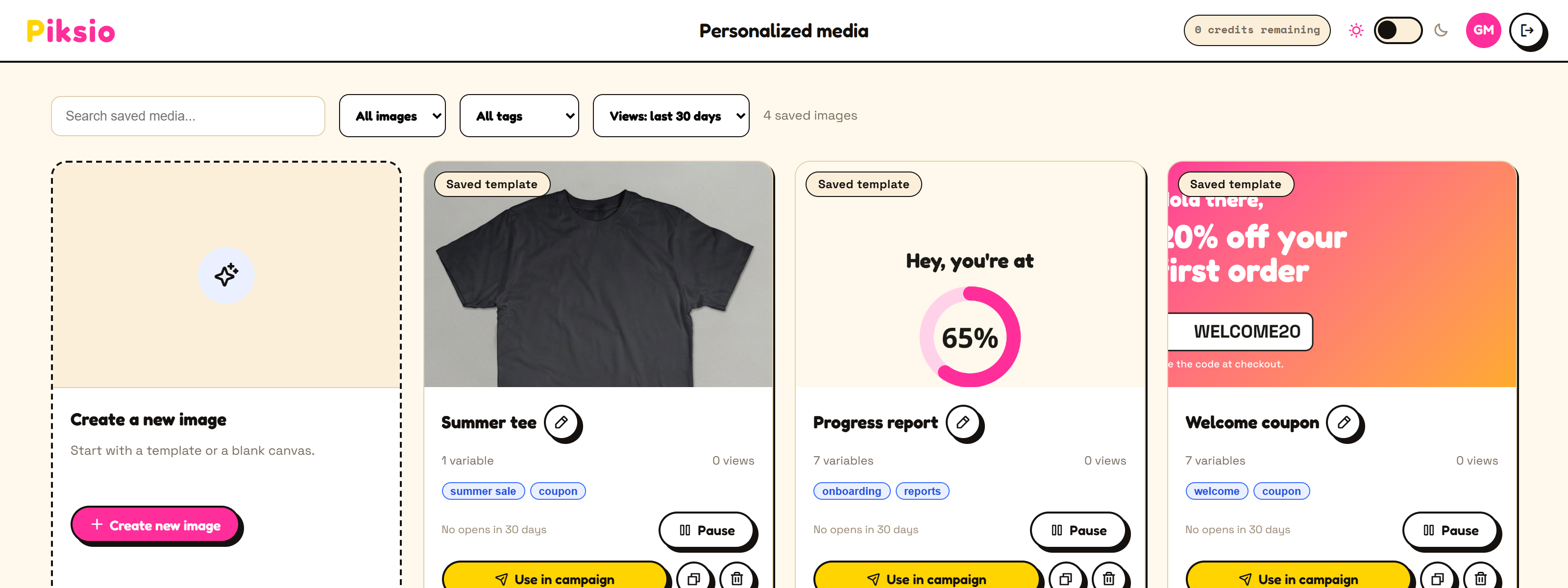
- Click an image’s preview to open it in the editor, or the pencil to rename it.
- Each card shows its views for the chosen period and when it was last opened.
- Use in campaign opens it in the editor, where Use in email gives you the link for your platform.
- The copy button duplicates it; the bin deletes it.
- Filter by Live or Paused, and by tag. Click a tag on a card to filter by it.
Add tags in Canvas settings (the top of the panel when nothing is selected), like black friday or onboarding, to group images by campaign or purpose. Press Enter or type a comma after each one. An image can have up to 12 tags. Tags are saved with the image and included when you use Export JSON.
Pause stops an image showing in emails, including emails already sent. Use it when an offer has expired, when you spot a mistake after sending, or when a campaign is over but people keep reopening old emails.
While an image is paused:
- Anyone who opens an email with it sees nothing in its place: no broken-image icon.
- It isn’t rendered and uses no credits.
- Its link doesn’t change. Resume and every email shows it again.
Pause from the editor’s top bar or from the image’s card. Pausing asks you to confirm; resuming is immediate.
Next: put it in an email with Use in email.