Projects
A project is one piece of work inside a brand: a product launch, a holiday campaign, a welcome series. Every project in a brand shares that brand’s colours, fonts and photos.
Several brands to manage, like an agency or a company with more than one label? Add each as its own brand, then add projects inside each one.
Add a project
Section titled “Add a project”- On the home screen, open the brand.
- Click Add a project, type a name (for example
Seasonal blend launch), and click Create.
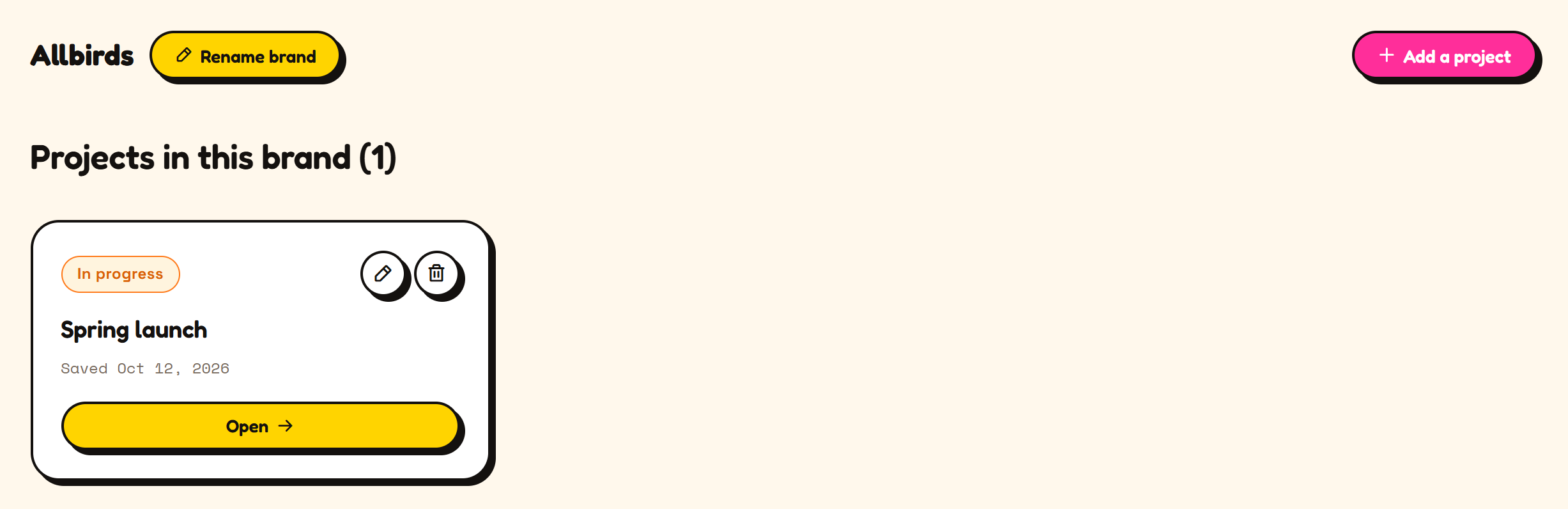
Your first project in a brand opens right away. Later ones appear in the list. Click Open to continue one.
The steps in a project
Section titled “The steps in a project”
| Step | What you do |
|---|---|
| Brand | Read your website, or review the brand profile. See Start from your brand. |
| Brief | Say what you’re making: campaign creative, a personalized image base, or both. |
| Mode & format | Generate makes brand-aligned images from a prompt. Personalize opens the personalization editor. |
| Concepts | Pick from generated concepts. |
| Assets | Review and select the images the project made. |
| Download | Download the finished images. |
A project remembers which step you reached, so you can close it and come back later.
Rename or delete
Section titled “Rename or delete”Use the pencil icon on a project card to rename it, and the trash icon to delete it. Deleting a project can’t be undone. Deleting a brand also deletes every project in it.