On your phone
You don’t need a computer to ship a personalized image. Start from a template and Create with AI were built so that the whole job — design, personalization, fallbacks, link — happens in a column of questions and buttons, with no dragging on a canvas.
The result is a reusable template. Once saved, its image link renders the same design with each recipient’s details. AI artwork generation is a creation or editing action, not something repeated for every email.
The phone path
Section titled “The phone path”-
Open Piksio in your phone’s browser and sign in.
-
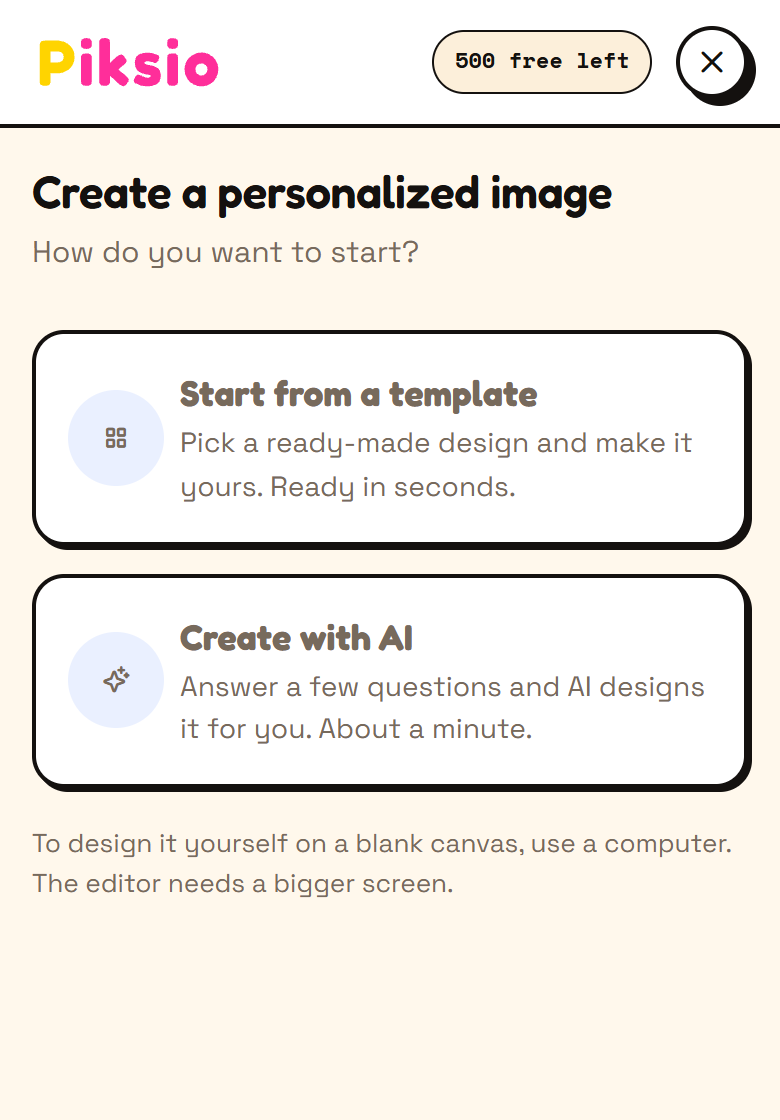
Tap Create a personalized image.
-
Tap Start from a template for a ready-made design, or Create with AI to answer the questions. Both end on the same result screen.
-
On the result screen, check the preview, rewrite any Text line, and fill in When a detail is missing. Switch between Sample person and No data (fallbacks) to see both versions.
-
Give it a Name and tap Save & get link.
-
Use in email opens straight away: pick your platform, match the fields, copy the link, and tap Test the link.
That’s a complete, live personalized image. Everything after that — pasting the link into Klaviyo, Mailchimp, lemlist and the rest — is your email platform’s job, not ours. See Use in email and your platform guide.
What’s easier on a computer
Section titled “What’s easier on a computer”The editor is a canvas with panels on either side, so it expects a wider screen — which is why the start screen on a phone offers a template and Create with AI, but not the blank canvas. Use a computer when you want to:
- drag, resize and rotate layers by hand,
- work with a long list of layers or fields side by side with the design,
- build a bar or line chart, or fine-tune wrap and fold effects,
- import or export a design as JSON.
Everything the editor does to a design can wait: Open in editor on the result screen hands it over exactly as it is, without regenerating anything, whenever you’re back at a desk.
- The AI questions take about a minute to generate. Keep the screen open and the phone awake while it works.
- Your own photo is a good shortcut on a phone: Use my photo as the background in step 2 takes a picture straight from your camera roll, uses no AI artwork credits (recipient rendering is billed separately), and Piksio offers to match the image size to your photo’s shape.
- Test renders are free, so test as many times as you like before sending. See Test your link.