
Start from your brand
When you open Piksio you get two choices:

- Create a personalized image opens the template creation flow. Start with AI, a gallery template or the canvas, then reuse your saved design with each recipient’s details. No brand or project is required.
- Add a brand reads your website first: its colours, fonts, imagery and tone of voice. Everything you make inside that brand starts from that look.
Adding a brand isn’t a separate product. Most people who make personalized images still want them to look like the rest of their emails. Reading your website first is the quickest way to get your exact colours and fonts into the editor, instead of picking them by hand.
Add a brand
Section titled “Add a brand”- On the home screen, click Add a brand.
- Type your website, like
yourbrand.com, and click Create. - Open the brand and add a project (see Projects). Your first project opens on the Brand step.
- Click Read brand look. Piksio reads the site and fills in your brand profile. This takes a few seconds.
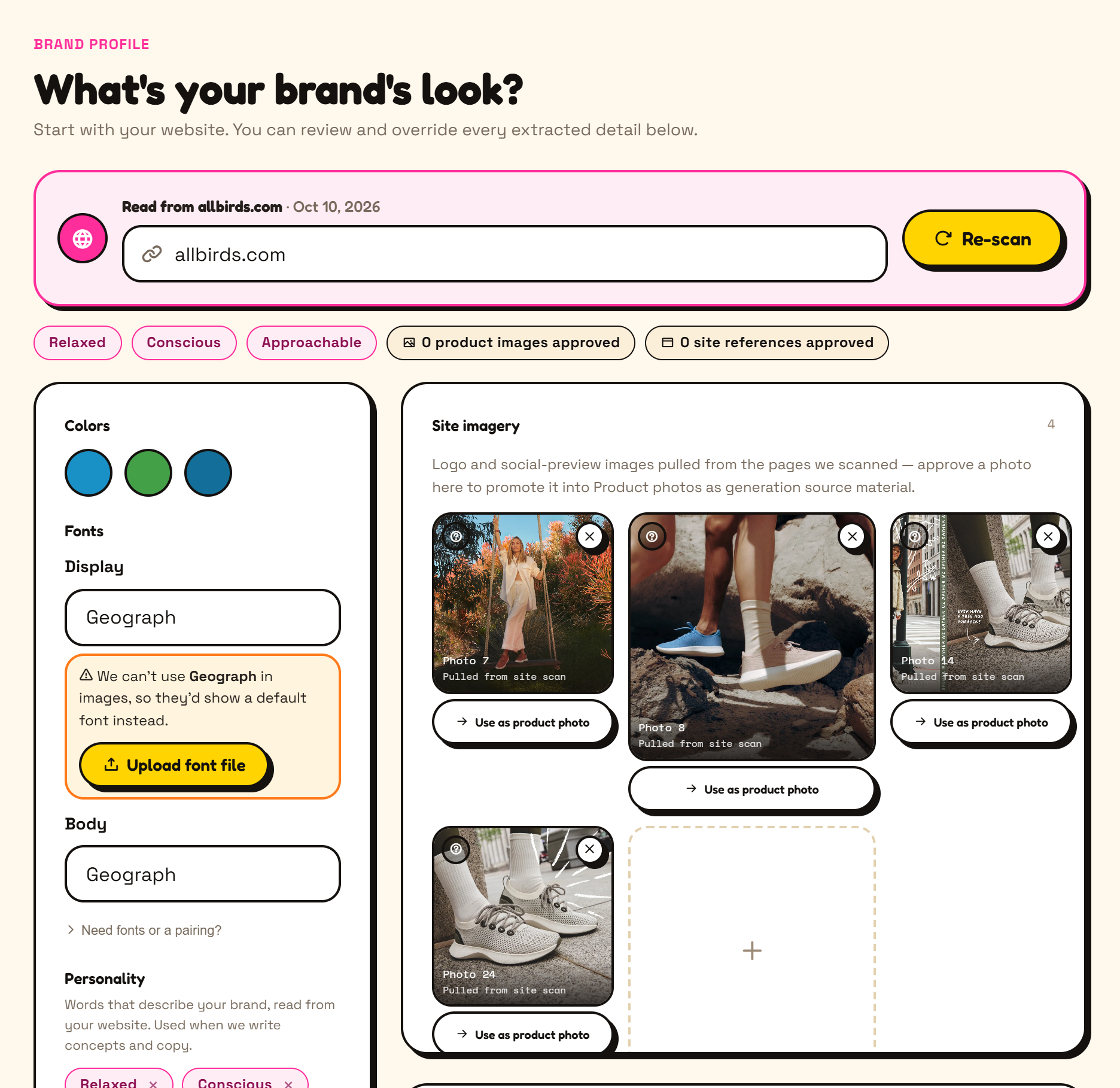
What Piksio reads from your site
Section titled “What Piksio reads from your site”| Section | What it holds | Where it’s used |
|---|---|---|
| Colors | Your palette, with a role for each colour where Piksio can tell (primary, accent, background, text). | Colour swatches in the editor, and the default colour of new text and shapes. |
| Fonts | A Display font for headlines and a Body font for text. | Pinned to the top of the editor’s font picker. See Brand fonts. |
| Personality | Words that describe the brand. | AI concepts and copy. |
| Buttons & shapes | Corner style: sharp, slightly rounded, rounded or pill. | Buttons, badges and frames in generated images. |
| Imagery style | Photography, illustration, 3D, gradients and so on. | The look of AI-generated images. |
| Tone of voice | How headlines and copy should sound. | AI-written headlines and copy. |
| Site imagery | Your logo and social-preview images from the pages Piksio read. | Approve one to move it into Product photos. |
| Product photos | Photos you approve or upload. | Source material for generated and personalized images. |
Fix what the scan got wrong
Section titled “Fix what the scan got wrong”Everything in the brand profile can be edited. Change a colour, swap a font, add or remove personality words, pick a different corner style. A website doesn’t always show a brand the way the brand wants to be shown, so check the profile before you build on it.
In the example above, the scan found Allbirds’ font, Geograph, but Piksio can’t use it in images. The profile says so and offers an upload. See Brand fonts.
Re-scan
Section titled “Re-scan”Changed your website? Open the brand’s Brand step, click Re-scan, then Re-scan now.
Your edits are kept. A re-scan only refreshes the sections you haven’t changed, so a colour you fixed by hand stays fixed.
If you read the same site recently, Piksio reuses that reading instead of scanning again. Click Re-scan to force a fresh one.
- Use your brand in a personalized image
- Brand fonts, including what happens when your font can’t be used in images