
Use in email
You don’t need the platform guides to get started. Open your saved image in the editor and click Use in email in the top bar (it’s also in the Connect tab). The dialog writes everything for your design, in your platform’s own syntax.
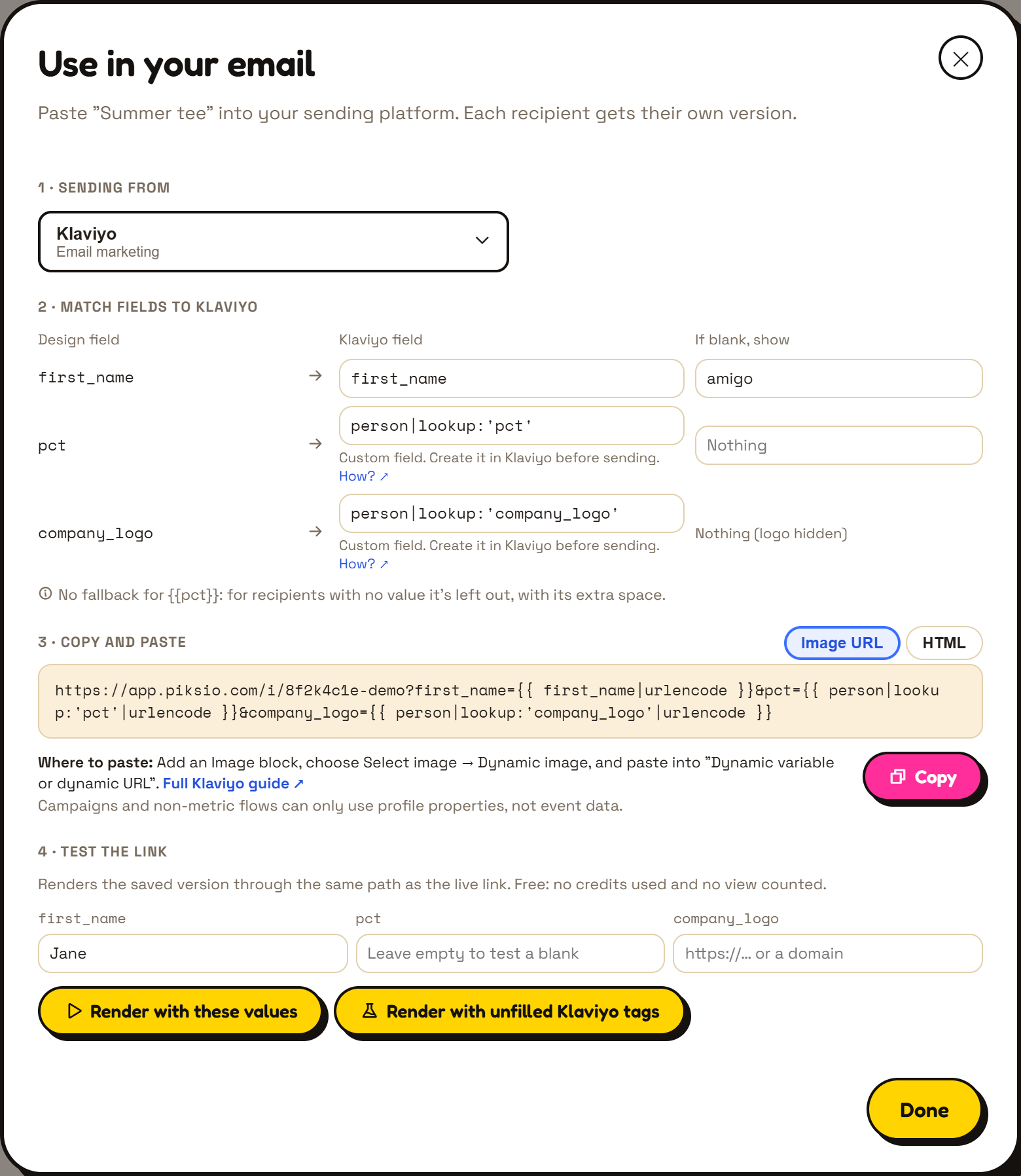
1. Sending from
Section titled “1. Sending from”Pick the tool that sends the email. Your last few picks are at the top, and the rest are grouped: email marketing, customer engagement, transactional email, cold email and sales outreach. Type to search.
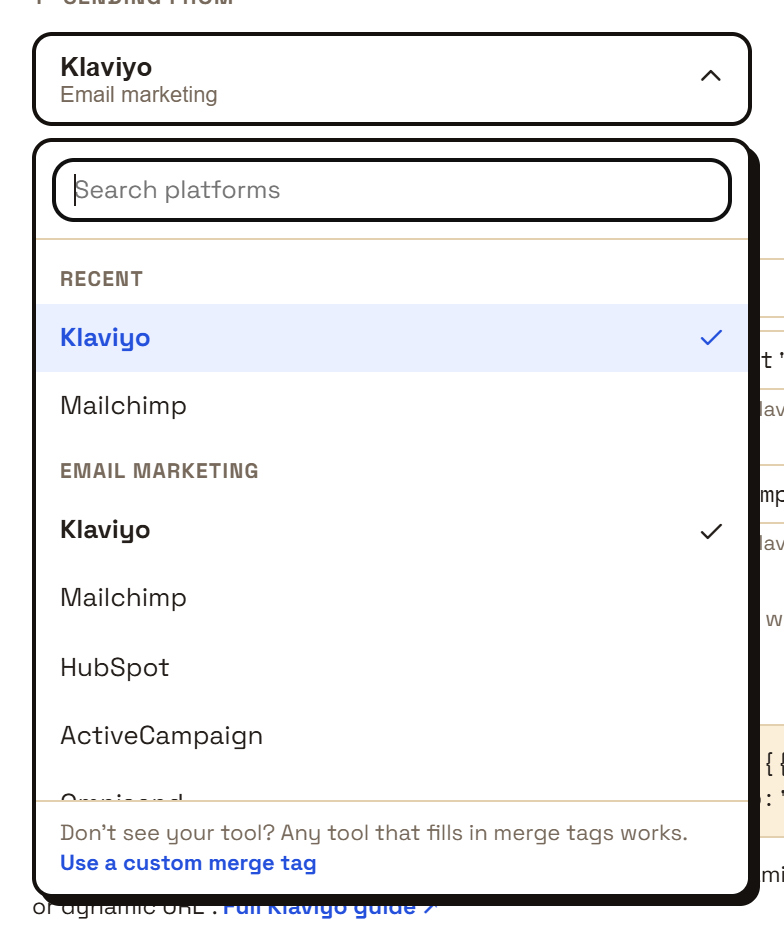
Not listed? Choose Use a custom merge tag at the bottom and pick the way your tool writes merge tags, such as {{first_name}}, *|FNAME|* or %FIRSTNAME%. Sending from your own code? Choose Your own code.
2. Match fields
Section titled “2. Match fields”Each field in your design is matched to your platform’s field. Built-in fields, like Mailchimp’s FNAME, are filled in for you. You can change any of them, and Piksio remembers your choices for that image.
A field marked Custom field isn’t built into your platform, so it must exist there before you send. How? ↗ opens your platform’s instructions.
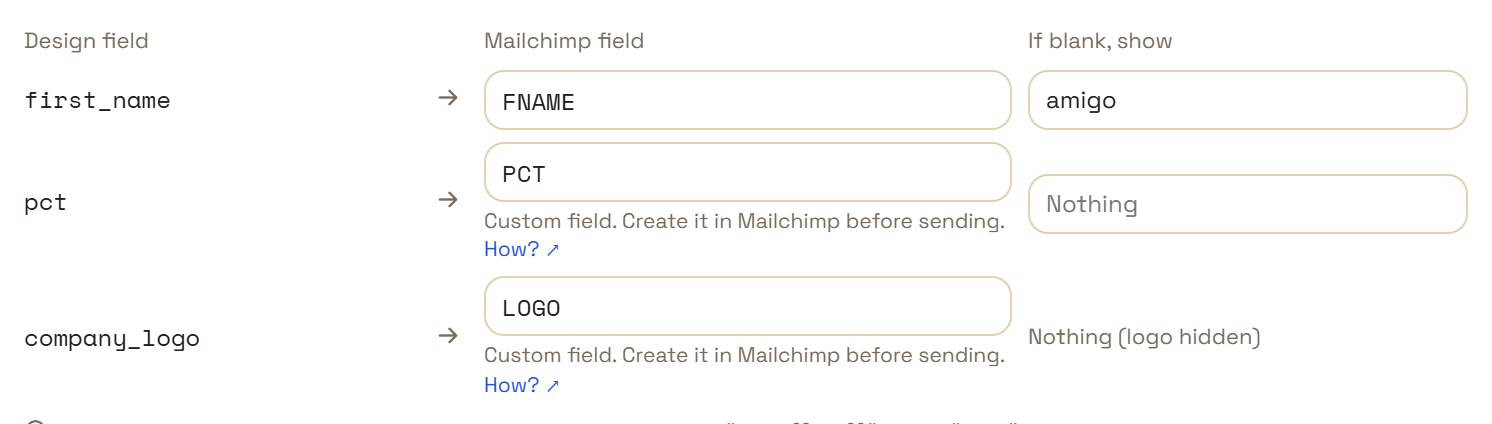
Piksio also checks your platform’s naming rules as you type. For example, Mailchimp merge tags can be at most 10 characters.
If blank, show sets what a recipient with no value sees. It’s saved to the image as soon as you click away. Leave it empty and that word is left out instead. See Fallbacks and blanks.
3. Copy and paste
Section titled “3. Copy and paste”Choose the format your platform needs. The default is already the right one for it:
- Image URL: for platforms with a dynamic-image block, like Klaviyo.
- HTML: an
<img>tag for a code or HTML block, like Mailchimp. - Code: for transactional senders and your own code. It builds each recipient’s link with every value safely encoded.
Under the box, Where to paste says exactly where it goes in your platform, with any rules to know. Full guide ↗ opens that platform’s page in these docs.
4. Test the link
Section titled “4. Test the link”Render the image with sample values, or with your platform’s tags left unfilled, to see your fallbacks at work. Test renders are free. See Test your link.
When to read the platform guides
Section titled “When to read the platform guides”The platform guides cover the same steps in more detail, plus each platform’s rules: which fields are built in, how to create a custom field, and whether it encodes special characters. They’re handy for troubleshooting, or for sharing with whoever manages your email platform.