Personalize layers
A layer becomes personal when it uses a field: a name like first_name or coupon_code that each recipient’s link fills in. Field names are lowercase with underscores. Whether you created the template with AI, from the gallery or in the canvas, personalization fills its saved layers with recipient data. It does not generate a new AI design for each person.
Text: merge tags
Section titled “Text: merge tags”Type a merge tag in double curly braces anywhere in a text layer: Hola {{first_name}}, or {{discount}}% off your first order.
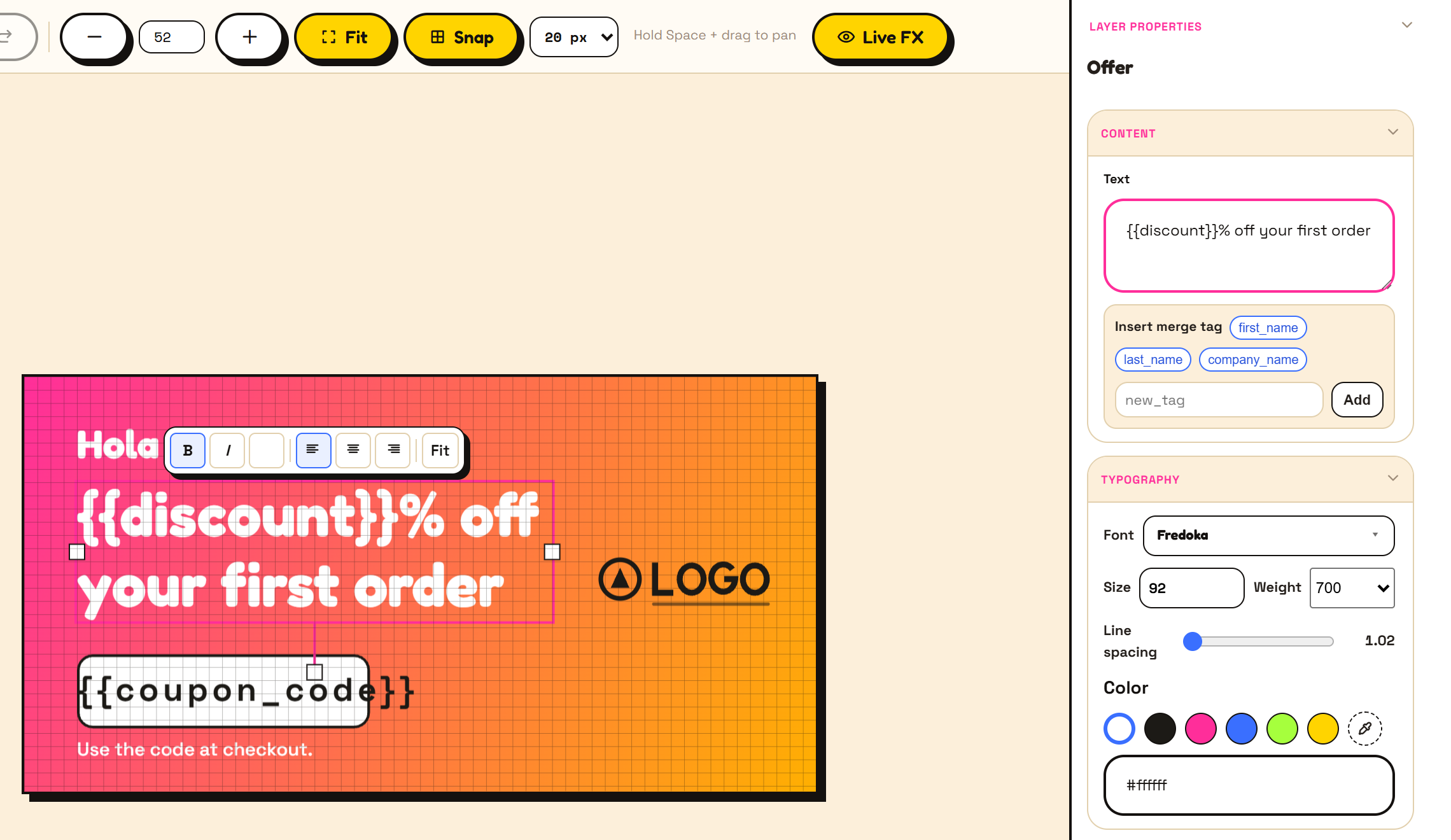
With a text layer selected, the Insert merge tag row adds the standard fields (first_name, last_name, company_name) at the cursor. Type a new name and click Add to create your own field.
One text layer can use several fields, and the same field can appear in several layers. Each one is filled with the same value.
Logo: company_logo
Section titled “Logo: company_logo”The Logo element always uses the company_logo field. Each recipient’s value can be:
- a domain, like
acme.com: Piksio finds that company’s logo, or - a link to a logo image, like
https://cdn.acme.com/logo.png.
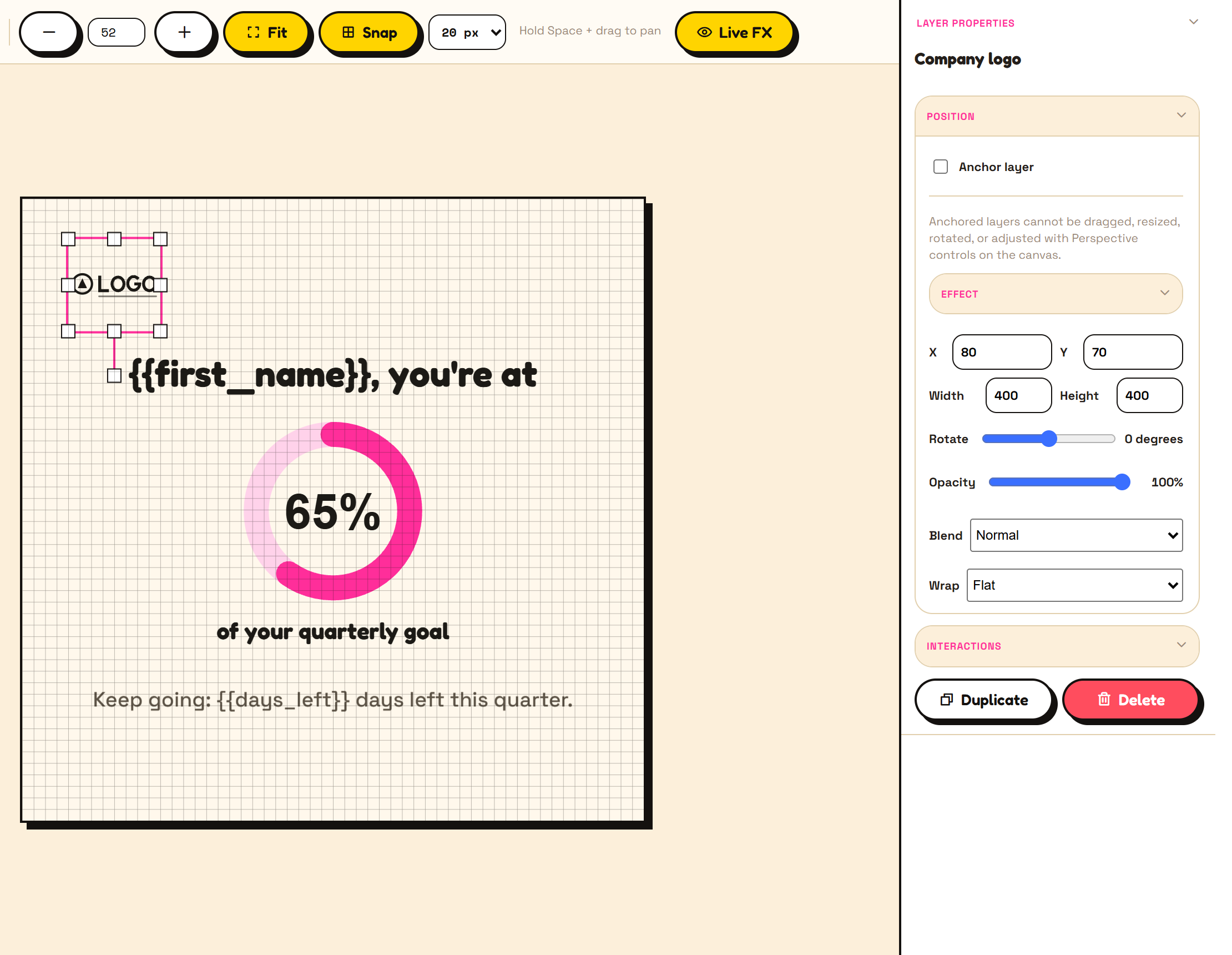
In the editor, the logo shows a LOGO placeholder until you preview it with a value. A recipient with no logo value sees no logo at all, never the placeholder.
Charts and numbers
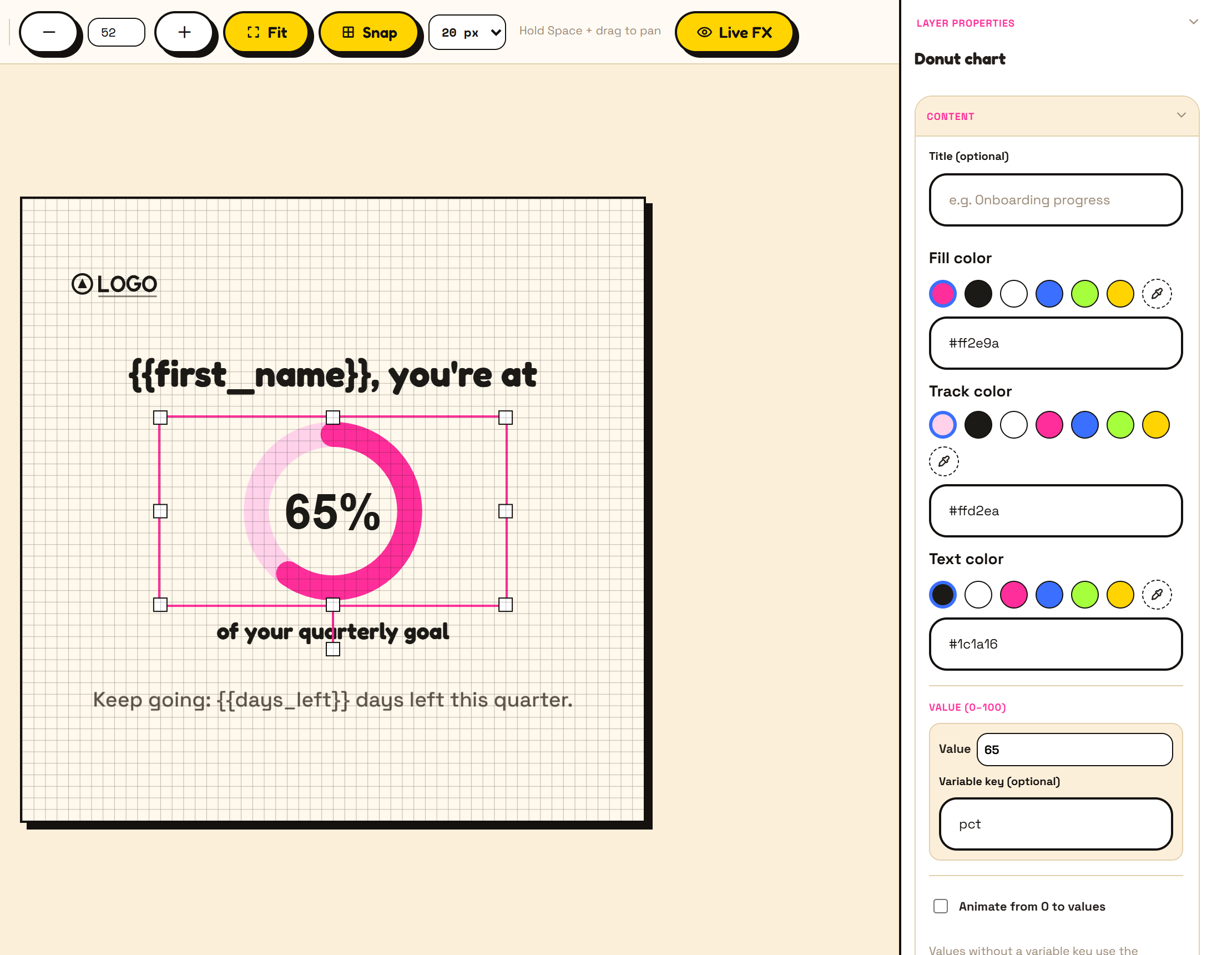
Section titled “Charts and numbers”A chart value can come from a field. Select the chart, and under Value enter a Variable key, like pct. The number in the Value box is what shows when a recipient has no value.
Images and colours
Section titled “Images and colours”- Images and profile photos: set a field in the layer’s settings, and each recipient’s image link replaces the one in your design.
- Colours: a text or shape colour can be bound to a field. Each recipient’s link can then set it, like
ff2e9aorred. - Background: turn on Dynamic background in the canvas settings to let the link choose the background image.
A Map layer draws each recipient’s own map. Add it from Add elements, then in its settings choose:
- Type: roadmap, satellite, terrain or hybrid, and Zoom from 1 to 20.
- Location: Address — the usual choice. Type an example address to design with, and each recipient’s own goes in the
map_addressfield:221B Baker Street, London NW1 6XE. The more complete the address, the better Google places the pin. - Location: Lat / long — for coordinates instead, through
map_latitudeandmap_longitude.
map_zoom and map_type can be personalized too, if you want one recipient’s map closer in than another’s.
Print a field on a product
Section titled “Print a field on a product”Text and logo fields don’t have to sit flat on the picture: they can be printed on a product in it — wrapped around a bottle, cup or can, or following the folds of a shirt, tote or sheet of paper. Set it up per field in Create with AI, or by hand with Wrap effects. Designs that use it render as a still image.
What if a value is missing?
Section titled “What if a value is missing?”You decide. Set a fallback for each text field in Use in email (or under When a detail is missing on a template’s or AI design’s result screen), or leave it empty and that word is left out. See Fallbacks and blanks.
Next: Effects.